Get help with Download and install
Installation for individuals
Get products in another language
Download your product in your language and manage language packs.
Download software in a different language
Sign in to Autodesk Account at manage.autodesk.com.
Under All Products and Services, find your product.
In the product tile, select a language and download the product.
Add a language pack
When you add a language pack to an Autodesk product, you can switch from one language to another in the interface and the documentation. Adding a language pack doesn’t duplicate the core product software. A single installed product can support several languages.
Note:
You can install language packs only after you install the product.
Language packs aren’t available for all products and operating systems.
Sign in to your account at manage.autodesk.com.
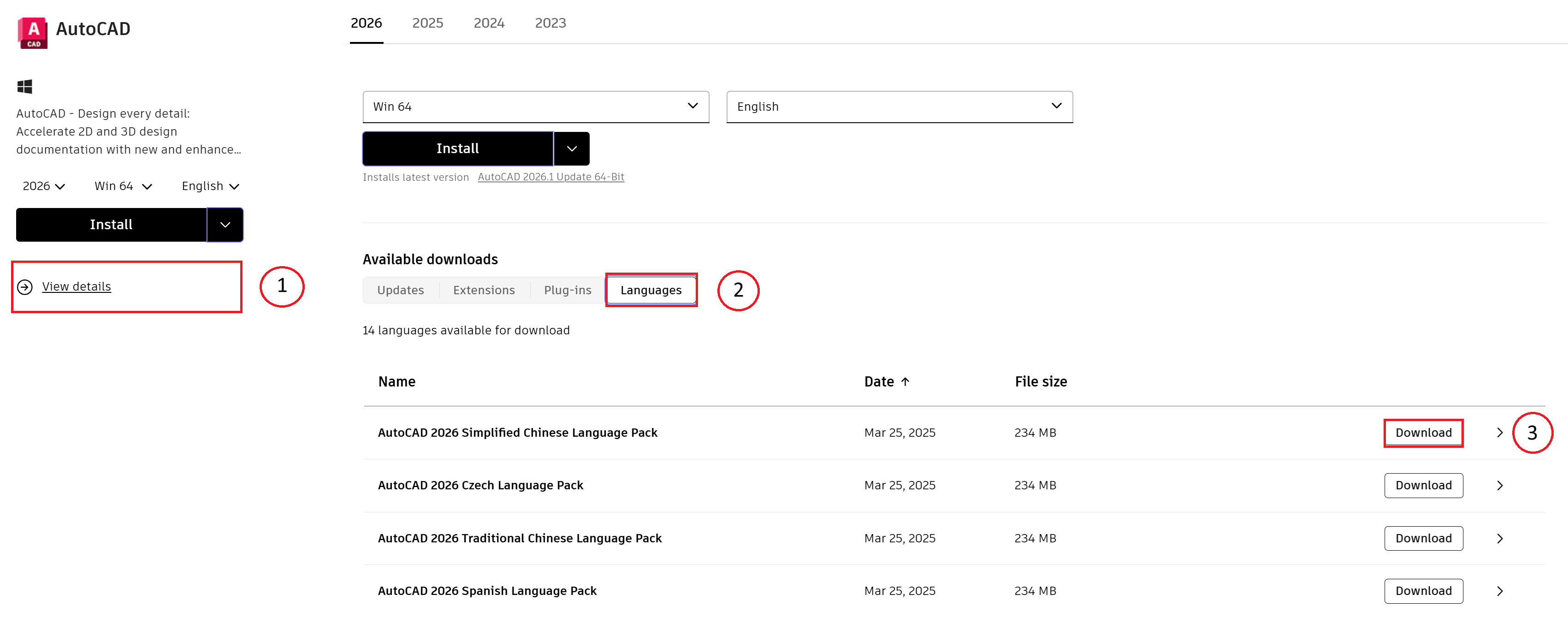
Under All Products and Services, find your product and click View Details.
Under available downloads, click Languages. If language packs are not available, the button is not shown.
Select a language and click Download.
Install a language pack from your product
From the Help menu, click Download Language Packs.
From the website you’re directed to, select a language pack to download.
After download is complete, install the language pack on your local drive.
Uninstall a language pack
From the Windows Start menu, go to the Control Panel and select the option for uninstalling programs (generally Programs and Features).
Select the language pack and click Uninstall.
Note: You can remove language packs without uninstalling the main product. But you can’t uninstall the default language (the one originally installed with the product) separately from the product.
Related resources
Need help? Ask the Autodesk Assistant!
The Assistant can help you find answers or contact an agent.
What level of support do you have?
Different subscription plans provide distinct categories of support. Find out the level of support for your plan.
View levels of support